Understanding the supplier portal
The supplier portal is the interface that allows you to provide your customers with the documents they request.
When a customer sends you a document request, you will receive it by e-mail. The e-mail contains a unique, secure link giving you access to the supplier portal: this is the only valid link.
The URL address visible in your browser when you are on the portal page is personal and cannot be shared. It will not give other users access to the portal.
General instructions
On the portal, you can respond to your customers' requests.
Please read the general instructions below:
Review the documents requested in the table.
Check the instructions or documents to be completed.
Select the request you wish to complete.
Attach the corresponding document.
Please note that on this portal you can also :
Indicate if a document is not available.
Attach a document to respond to multiple requests.
Attach multiple documents to a single request.
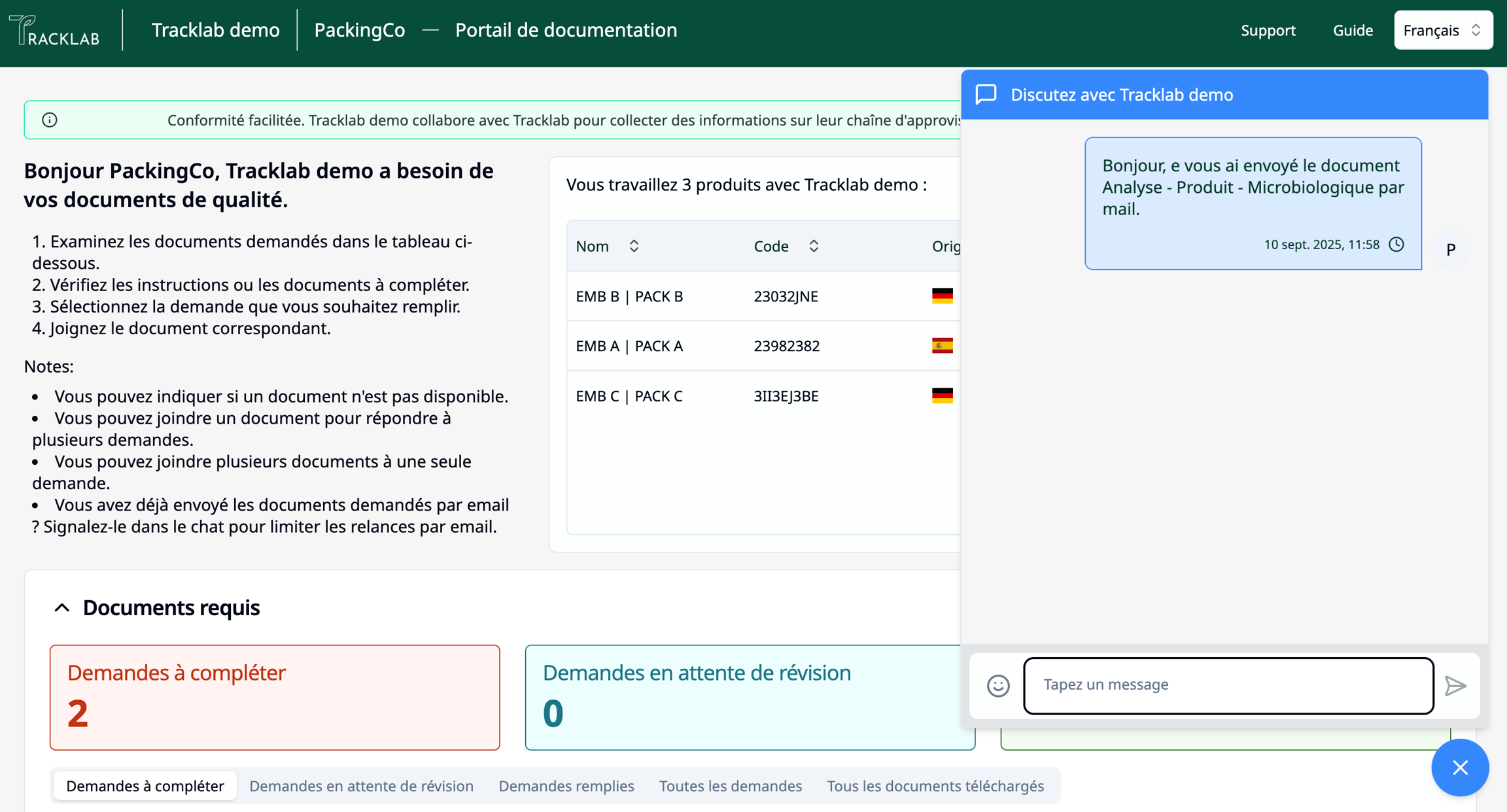
In addition, if you have already sent the requested documents by email, please indicate this in the chat to limit follow-up emails.
How to communicate with your costumers ?
The supplier portal gives you access to a chat feature. This allows you to communicate with your supplier via the platform. You can use it to provide information, particularly about requests, or to ask questions. You can access the chat feature via the blue icon at the bottom right.
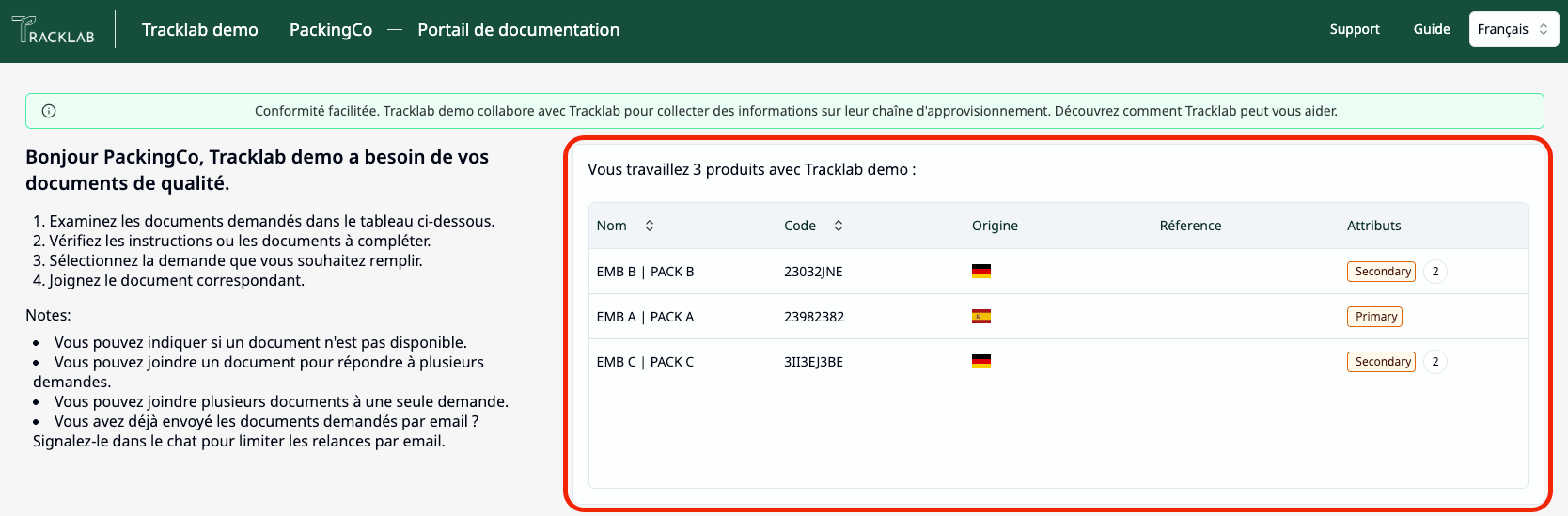
Products developed with yout customers
A box reminds you of the products you are working on with the customer for whom you are submitting documents. You have access to: the name, code, country of origin, reference (alias you use) and product attributes.
Documents required
Requests to complete : Indicates the number of requests that the customer has sent you that are not completed.
Requests pending review : Indicates requests that you have completed and are awaiting validation from the customer.
Filled requestes accepted : Indicates the number of requests you have completed and which have been accepted by the customer.

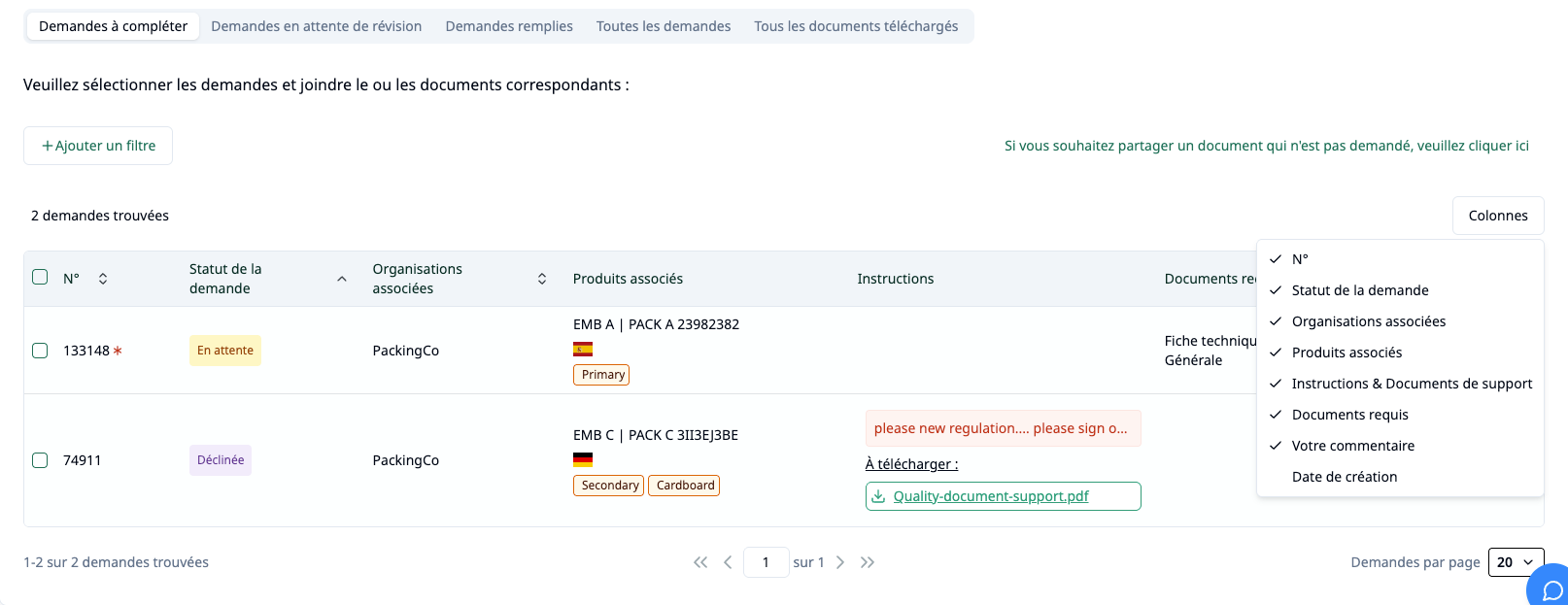
The general view of the table
You can access various information depending on the view you select :
Requests to be completed (and corrected)
Requests awaiting review
Completed (and cancelled) requests
All requests
All uploaded documents
For the first four views, you can choose whether or not to display this information :
the request number (unique number),
the status of the request :
Accepted : the document you provided has been accepted by your customer,
Rejected : the customer has rejected the request because they considered that it did not meet their requirements,
Pending : you have not yet completed this request,
Under review : you are waiting for your client to validate the document,
Declined : you have indicated that you cannot complete this request,
Cancelled : the client has cancelled the request,
The related organizations : concerned by the request,
The related product : concerned by the request,
Instructions & Support documents : the instructions enable you to respond correctly to the customer's request; the supporting documents are the documents that you must complete and upload to the platform,
Your comment : if the request is declined,
Creation date : date on which the request was created.
For the view on All downloaded documents, you have access to:
Document name,
Document types,
Related organisations,
Related products,
Start of validity,
End of validity,
Date added,
Document status.
Last updated